> For the complete documentation index, see [llms.txt](https://docs.xbstation.com/llms.txt). Markdown versions of documentation pages are available by appending `.md` to page URLs; this page is available as [Markdown](https://docs.xbstation.com/xblink-mini/user-manual/getting-started/setup.md).
# Setup
This section contains the hardware connection of XBLink Mini.
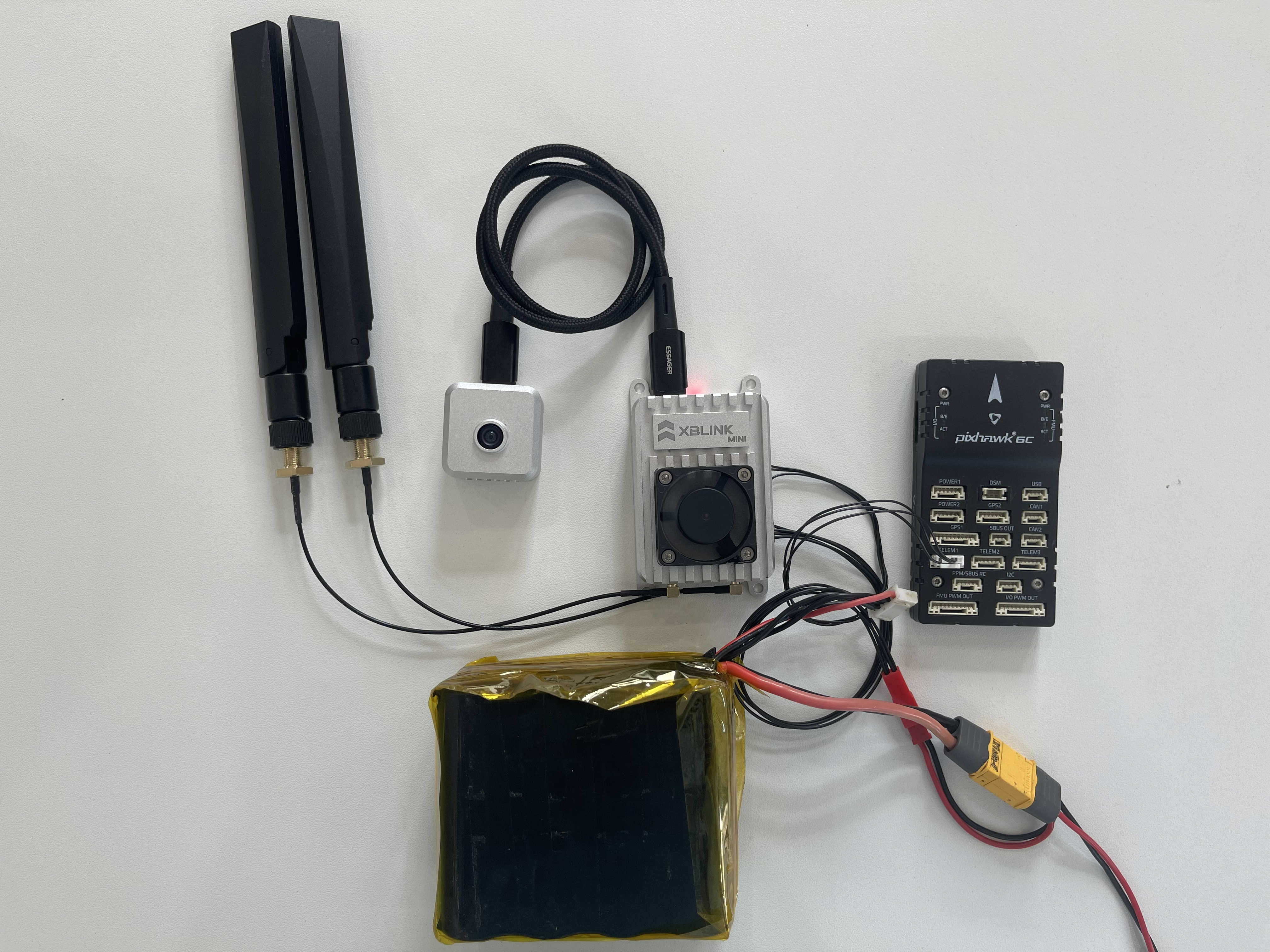
XBLink Mini hardware connection mainly includes SIM, Antenna, XBCamera V2, Flight Controller and Power up.
### Nano SIM Card
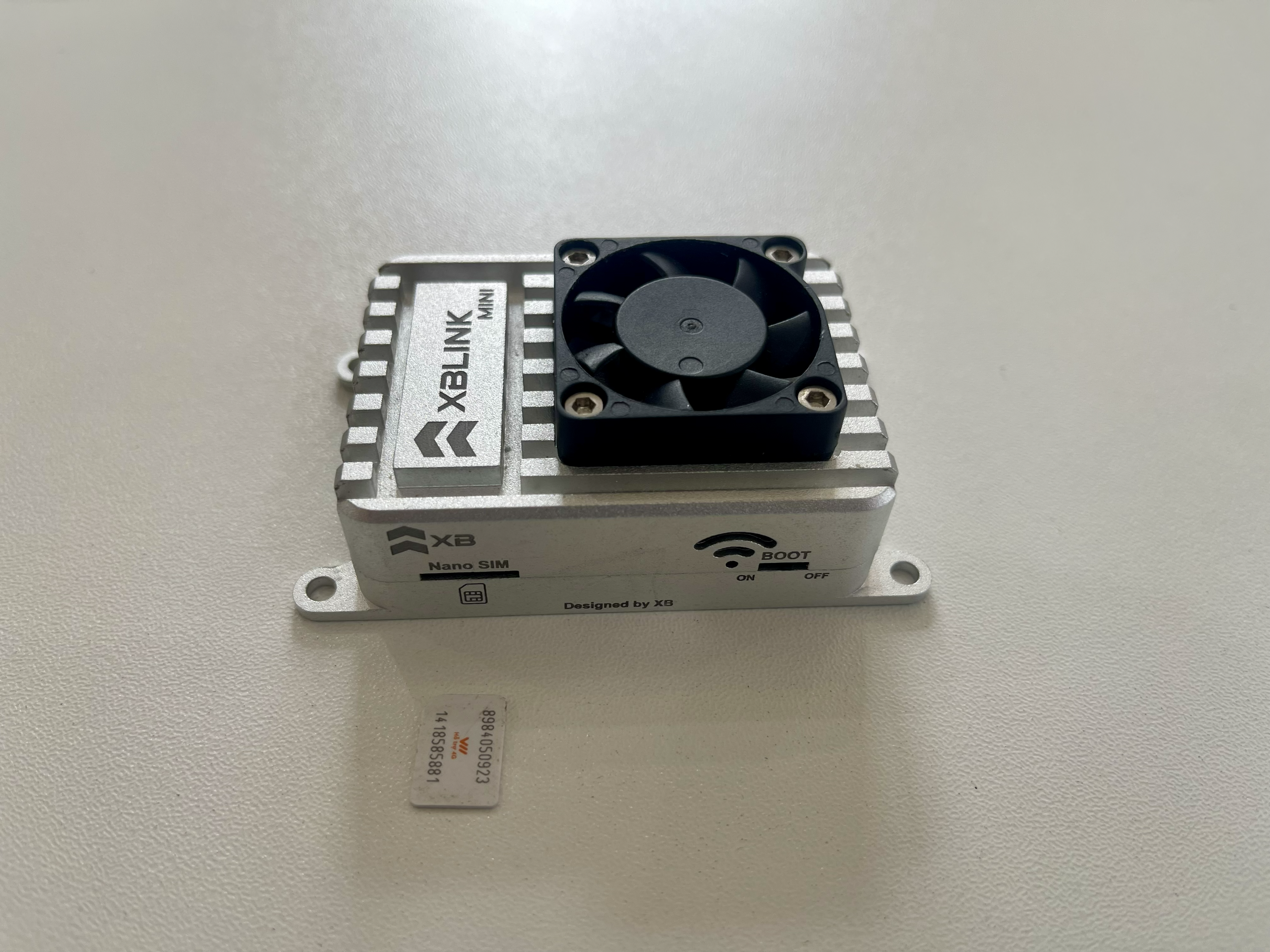
XBLink Mini supports push-push NanoSim connector.
Insert your SIM card into the SIM Card slot, the chip contacts have to **face up**.
{% hint style="info" %}
The SIM card is recessed into the enclosure and you might need a tool to push it into the socket. You can hear a click when the card is inserted.
{% endhint %}
To remove the SIM card, push onto the card with a tool. You can hear a "click" and the card will be pushed out of the enclosure. To remove the card again, push it in once more and it will pop out.
SIM Card must be faced up
### Antenna
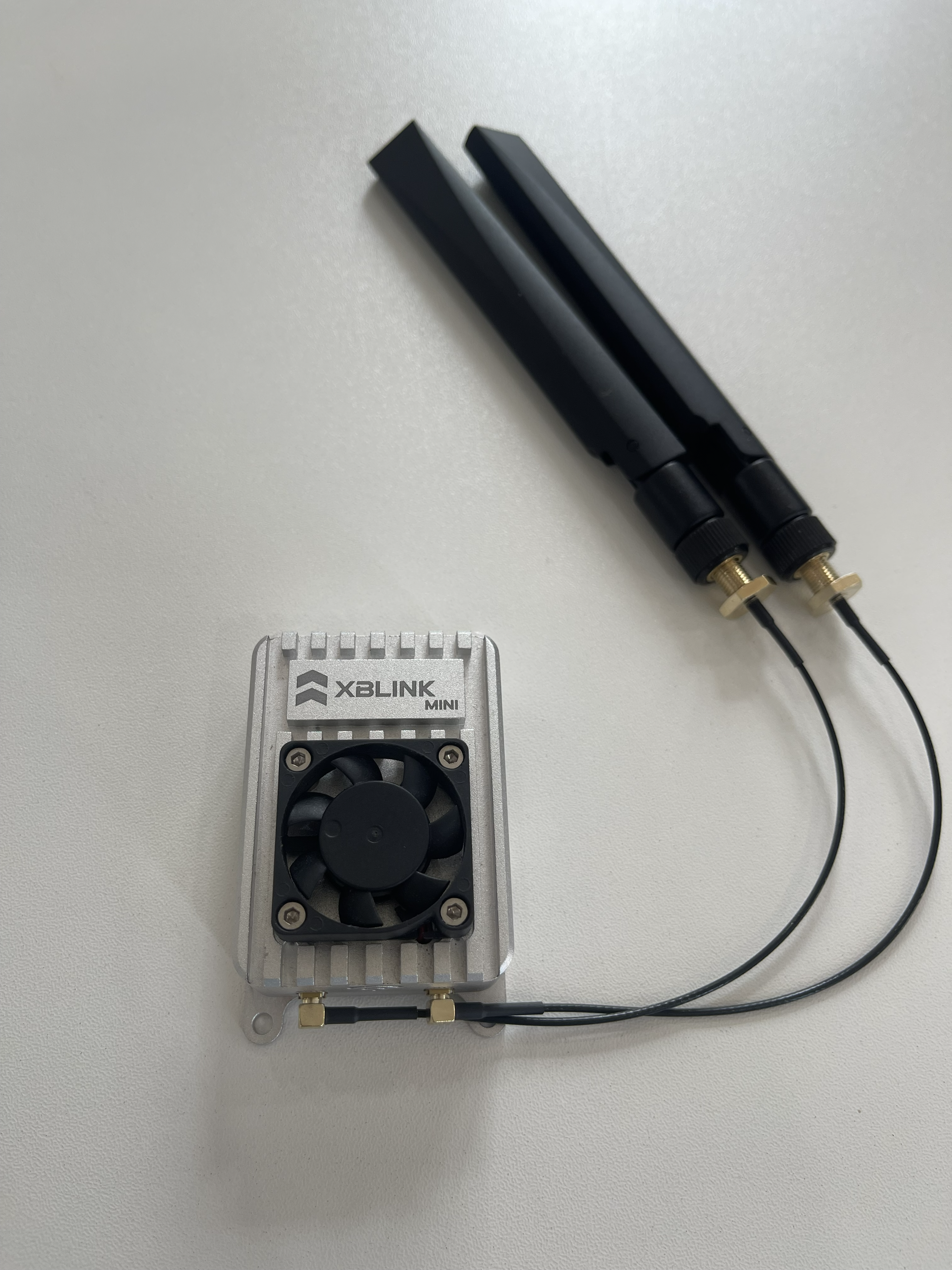
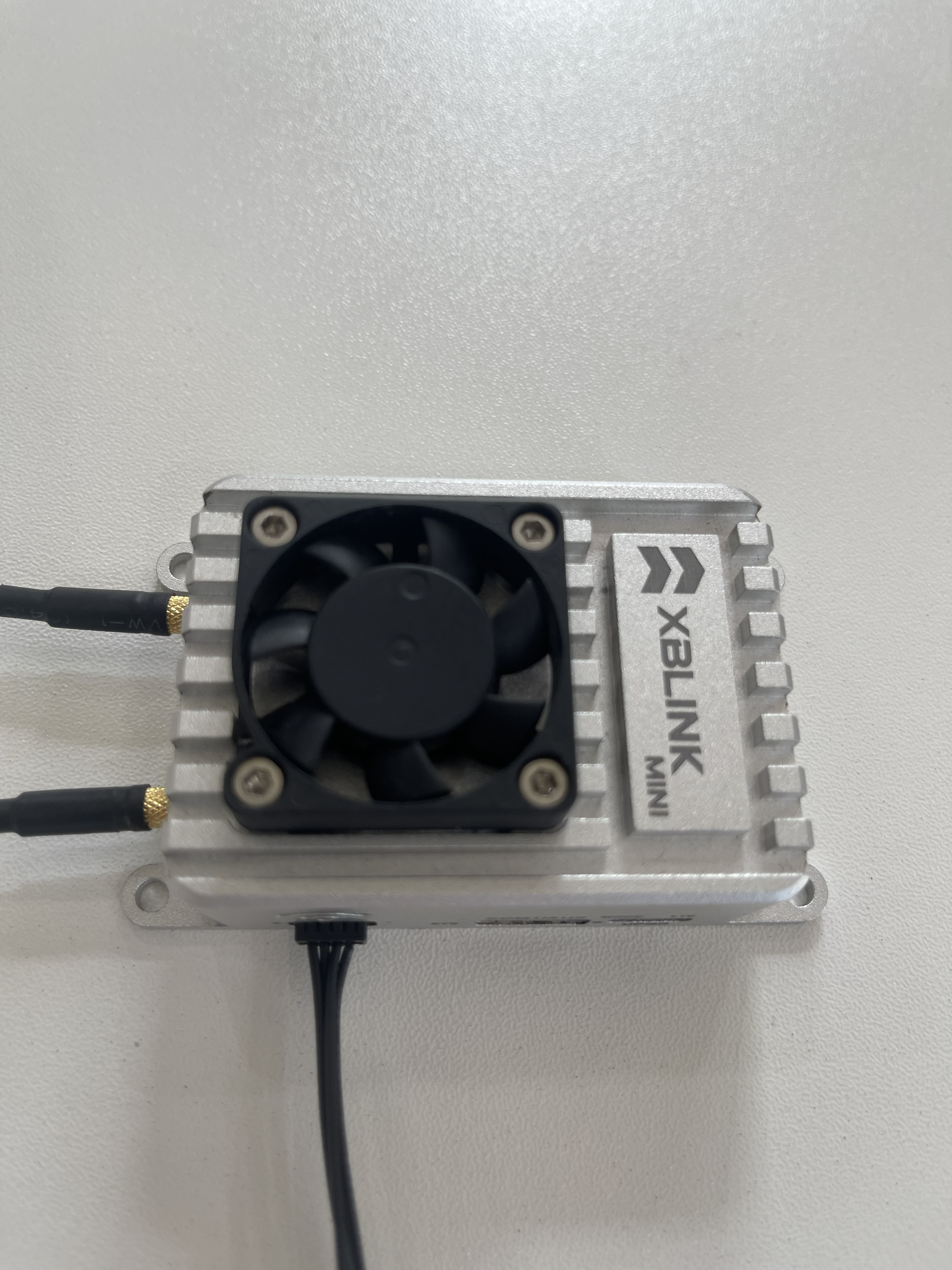
Connect the two LTE antennas to the MMCX connectors.
Connect LTE Antennas to XBLink Mini
{% hint style="danger" %}
**Note:** Be careful with the antenna port. Remove or Install it in a **straight angle**.
**We are not responsible if the antenna is damaged due to physical impact**
{% endhint %}
{% hint style="info" %}
**Antenna installation and removal instructions:** [**here**](https://www.youtube.com/watch?v=lAXGtti88gc)
{% endhint %}
### XBCam V2
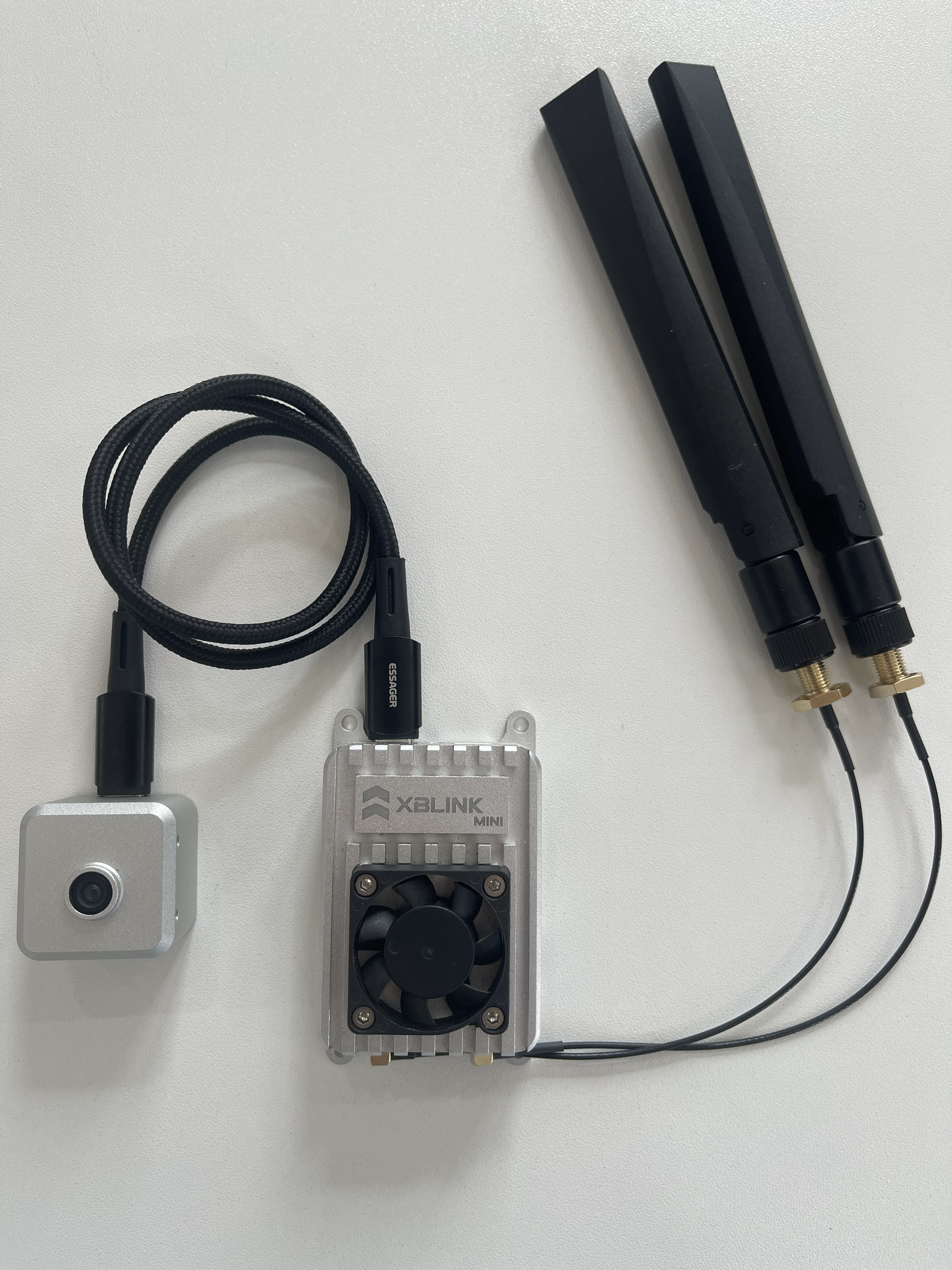
Connect XBCam V2 to USB type C port.
Connect XBCamera V2 to XBLink Mini
{% hint style="info" %}
**Note:** We **ONLY** support XB Camera for this model.
{% endhint %}
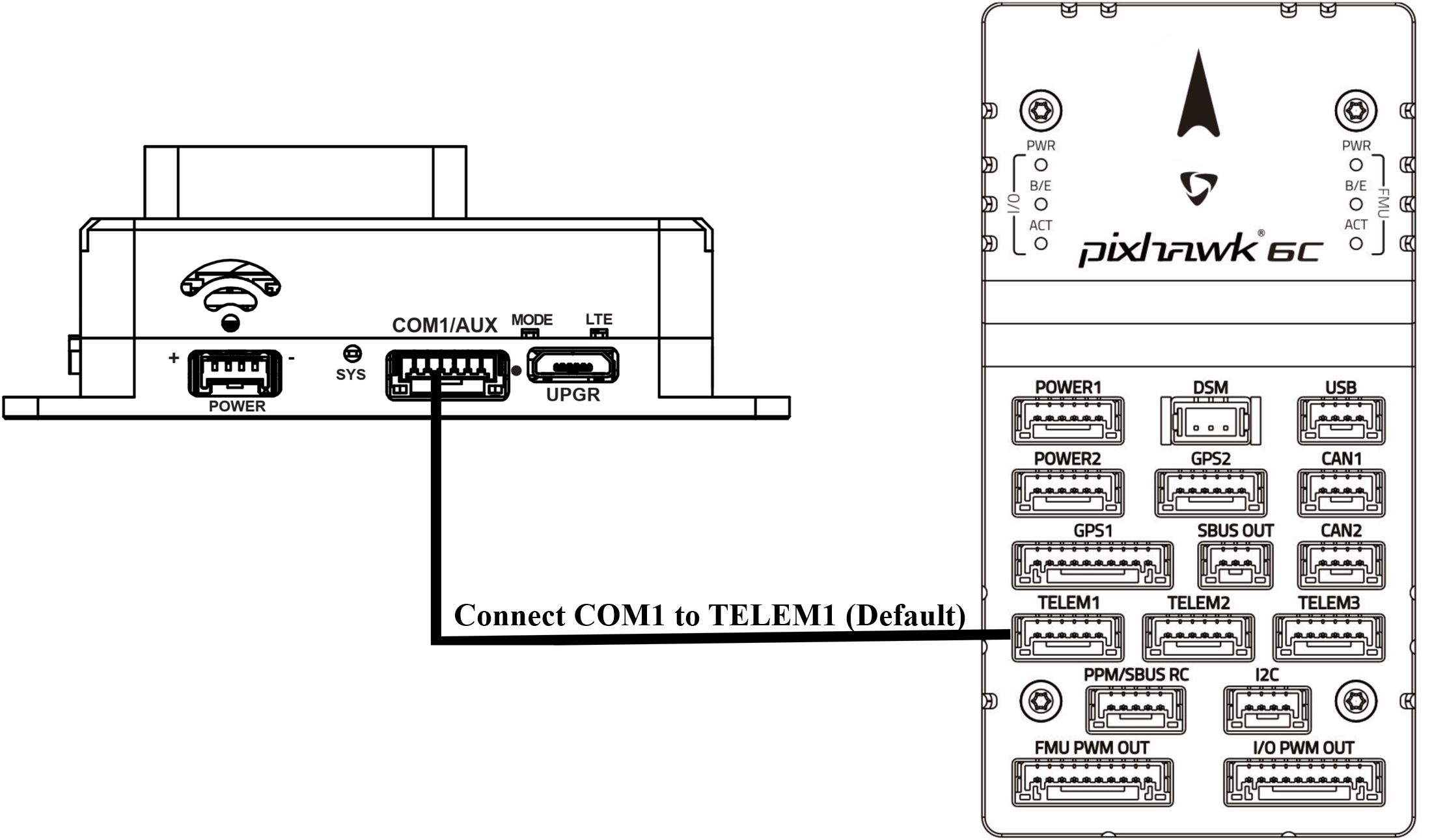
### Connect Flight Controller (Telemetry)
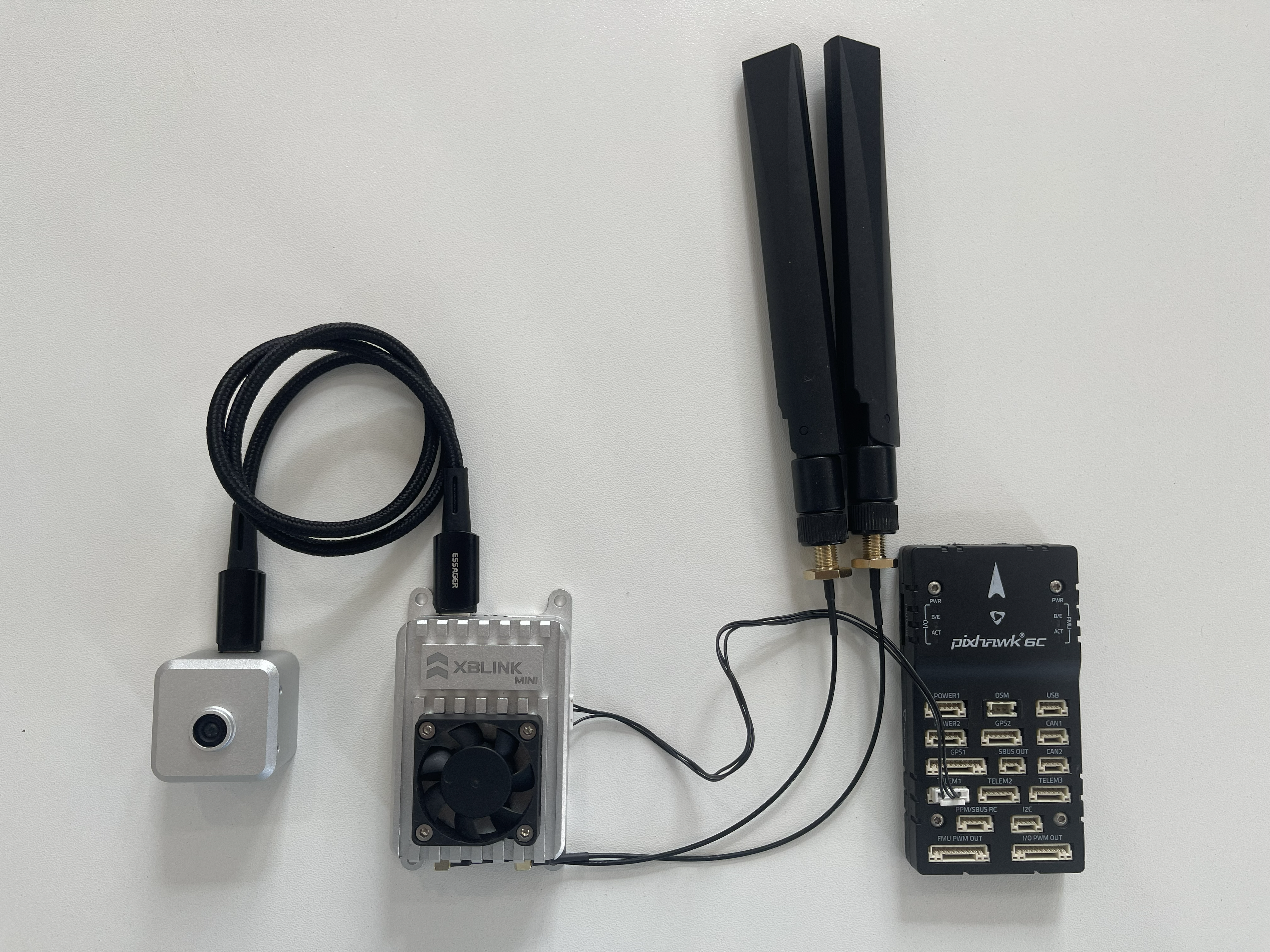
You can use Telemetry 1 or 2 of Pixhawk for connection with XBLink Mini via [**COM1/AUX**](/xblink-5g-r2/user-manual/getting-started/interfaces.md#com1-aux-j3) port.
Connect Pixhawk to XBLink Mini
{% hint style="info" %}
**Note:** Config baud rate of Pixhawk to 57600, SERIAL1\_BAUD (Default 57, it means 57600), SERIAL1\_PROTOCOL: 2 (MAVLink 2)
{% endhint %}
### Power up
Power up XBlink Mini
XBLink Mini supports 7-30V voltage input. We highly recommend **3-4 S battery or 12V DC UBEC** (minimum 3A) to power (6S battery is possible but make sure it's high quality and low discharge)
{% hint style="danger" %}
If you use low quality or high discharge 6S battery for drone, we are not responsible for damage.
{% endhint %}
### Done
Completion of setup XBLink Mini
Once XBLink Mini's LED has the green color continue to the next step to connect it to [XBStationPillotApp](/xblink-mini/user-manual/xbstationpilotapp.md).
More information: [here](https://www.youtube.com/watch?v=qTjosVhCdic)
{% embed url="" %}