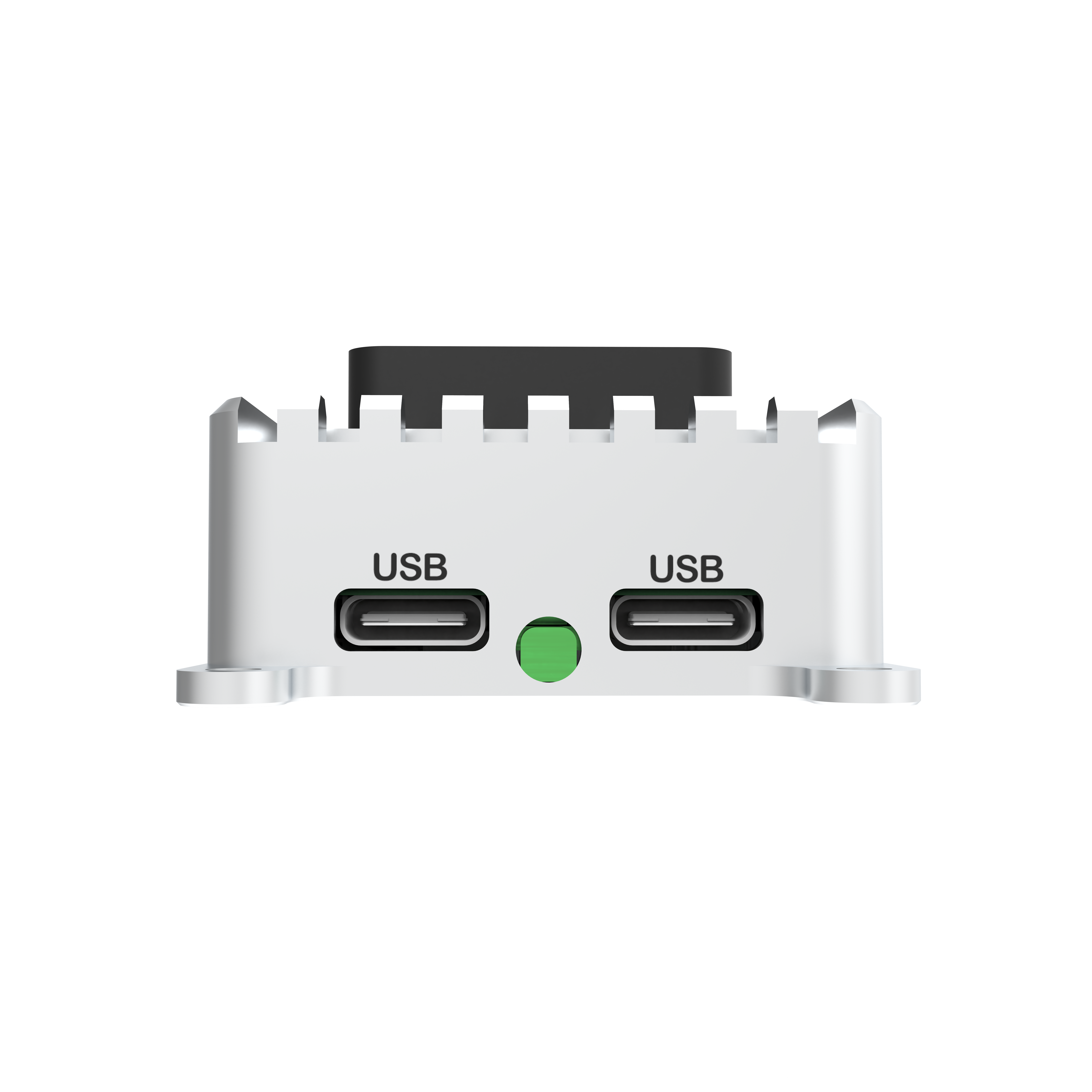
# LED indicator

<figure><img src="https://files.gitbook.com/v0/b/gitbook-x-prod.appspot.com/o/spaces%2FTEnid8slfk8yG87EyboI%2Fuploads%2FVRMwMJCcPrPtHbU6EuLV%2FLED_Mini.png?alt=media&#x26;token=3ed83fcc-693a-421b-88ff-0af390f06c6f" alt="" width="375"><figcaption></figcaption></figure>

## Led Map

| **LED**   | **Color** | **Description**                                  |
| --------- | --------- | ------------------------------------------------ |
| Main led  | RGB       | <p>Indicates the status of XBLink</p><p>Mini</p> |
| SYS led   | Green     | System LED                                       |
| LTE led   | Orange    | Status of the cellular connection                |
| Cam led   | Orange    | Turn on when take a picture                      |
| Power led | Red       | Inside XBLink Mini                               |

### 1.Main Led

<table data-full-width="true"><thead><tr><th width="100">Color</th><th width="193">Fast Blink(0.15s)</th><th width="205">Slow Blink(1.5s)</th><th width="231">Blink(0.7s)</th><th>Solid</th></tr></thead><tbody><tr><td><mark style="color:blue;">Blue</mark></td><td>Network Scanning</td><td>Network Scanning</td><td>Network Scanning</td><td>App Starting</td></tr><tr><td><mark style="color:red;">Red</mark></td><td>Check SIM and APN (<strong>Error 1</strong>)</td><td><p>Datacap OK,</p><p>Internet connected</p></td><td><p>Check SIM</p><p>(<strong>Error 2</strong>)</p></td><td><p>Insert SIM</p><p>(<strong>Error 3</strong>)</p></td></tr><tr><td><mark style="background-color:yellow;"><strong>Yellow</strong> (2G)</mark></td><td><ul><li>App running</li><li>Cloud connecting</li></ul></td><td><ul><li>XBFirm running</li><li>Internet connected</li><li>Cloud connecting</li><li>No sign in pilot app</li></ul></td><td><ul><li>XBFirm running</li><li>Pilot App connecting</li><li>Cloud connected</li><li>Signed in pilot app</li></ul></td><td><p>All good-</p><p>Connected to pilot app</p></td></tr><tr><td><mark style="background-color:red;"><strong>Pink</strong> (3G)</mark></td><td><ul><li>App running</li><li>Cloud connecting</li></ul></td><td><ul><li>XBFirm running</li><li>Internet connected</li><li>Cloud connecting</li><li>No sign in pilot app</li></ul></td><td><ul><li>XBFirm running</li><li>Pilot App connecting</li><li>Cloud connected</li><li>Signed in pilot app</li></ul></td><td><p>All good-</p><p>Connected to pilot app</p></td></tr><tr><td><mark style="color:green;background-color:green;"><strong>Green</strong> (4G)</mark></td><td><ul><li>App running</li><li>Cloud connecting</li></ul></td><td><ul><li>XBFirm running</li><li>Internet connected</li><li>Cloud connecting</li><li>No sign in pilot app</li></ul></td><td><ul><li>XBFirm running</li><li>Pilot App connecting</li><li>Cloud connected</li><li>Signed in pilot app</li></ul></td><td><p>All good-</p><p>Connected to pilot app</p></td></tr></tbody></table>

* Error 1: **Fast Red Blink (0.15s) -** Please [**check SIM card**](/xblink-mini/user-manual/getting-started/xblink-webapp/device.md) status, [**APN configuration**](/xblink-mini/user-manual/getting-started/xblink-webapp/config-network.md) and the current network environment.
* Error 2: **Red Blink (0.7s) -** Please check your[ **hardware connection**](/xblink-mini/user-manual/getting-started/xblink-webapp/device.md) (SIM card status, antenna)
* Error 3: **Red Solid Blink -** Please insert SIM card.

If the main LED blinks both a <mark style="color:green;">**green**</mark> and other colors as shown below.

* Wait another 10-15s for XBLink Mini to try to connect the internet in your area.
* Then, please check your internet connection and the current network environment.

| Blink (0.7s)                                | Yellow (2G)                                                                          | Pink (3G)                                                                         | Green (4G)                                                                          |
| ------------------------------------------- | ------------------------------------------------------------------------------------ | --------------------------------------------------------------------------------- | ----------------------------------------------------------------------------------- |
| <mark style="color:green;">**Green**</mark> | <p><mark style="background-color:yellow;">Connecting 2G</mark></p><p>No Internet</p> | <p><mark style="background-color:red;">Connecting 3G</mark></p><p>No Internet</p> | <p><mark style="background-color:green;">Connecting 4G</mark></p><p>No Internet</p> |

In order to verify the particular status of XBLink, we highly recommend that you should visit [**XBLink-WebApp**](/xblink-mini/user-manual/getting-started/xblink-webapp.md)

### **2.SYS led**

* Blinks - Normal operation
* Solid - Firmware Upload

### **3. LTE led**

* When the connection is established and data is being transmitted/received, this led will blink at special intervals. Otherwise, if there is no connection, the LED will remain off.

### **4.Power led**

* Light - Power is OK
* Off - No power input


---

# Agent Instructions: Querying This Documentation

If you need additional information that is not directly available in this page, you can query the documentation dynamically by asking a question.

Perform an HTTP GET request on the current page URL with the `ask` query parameter:

```
GET https://docs.xbstation.com/xblink-mini/user-manual/getting-started/led-indicator.md?ask=<question>
```

The question should be specific, self-contained, and written in natural language.
The response will contain a direct answer to the question and relevant excerpts and sources from the documentation.

Use this mechanism when the answer is not explicitly present in the current page, you need clarification or additional context, or you want to retrieve related documentation sections.
