> For the complete documentation index, see [llms.txt](https://docs.xbstation.com/llms.txt). Markdown versions of documentation pages are available by appending `.md` to page URLs; this page is available as [Markdown](https://docs.xbstation.com/xblink-duo/user-manual/advanced-configuration/cloud-features/ntrip.md).
# RTK NTRIP
This page aims to help you set up NTrip on your XBLink for a better experience on BVLOS
### Why do we need RTK?
The standard GPS/GNSS is accurate to about 2 to 5 meters, which is fine for navigating a car on a highway, but this is **not good enough** for precise tasks like landing a drone on a small pad, surveying, and autonomous farming. To fix this, we need to use RTK
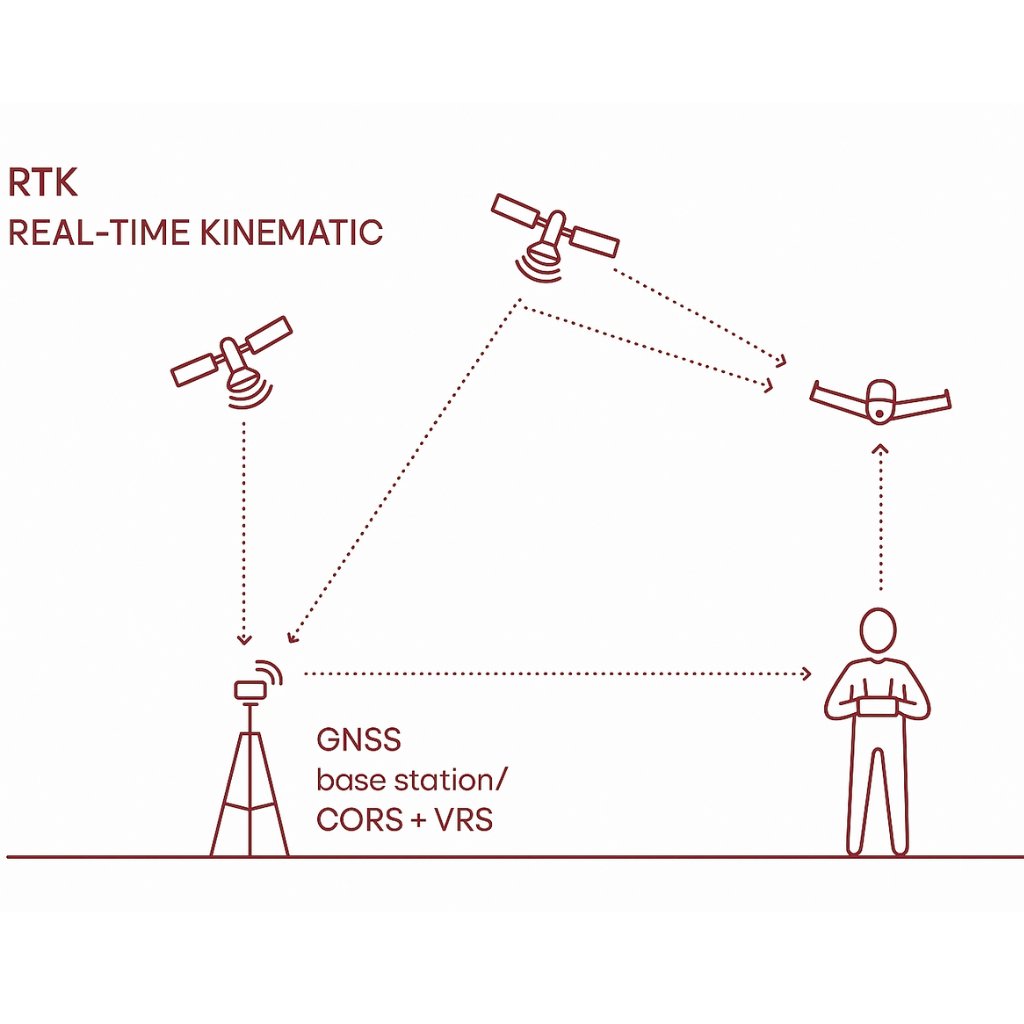
RTK stands for Real-Time Kinematic, it **uses a stationary "Base Station"** to send correction stream to your drones. This helps bring accuracy down to the centimeter level.
But here is the catch, the **Base Station** that send these corrections streams is using raw radio links. And radios **require line-of-sight**, and their **operation range** is typically only a **few kilometers**.
This is where NTRIP comes into play.
### What is RTK NTRIP?
In a nutshell, instead of transmitting GPS correction stream from a Base Station via **local radio**, we transmit those messages using NTRIP, which stands for Networked Transport of RTCM via **Internet Protocol**.
This would help you instead of relying on a localized radio setup, as long as your devices has internet connection it can receive RTK corrections from a base station anywhere in the world.
### How Does It Work?
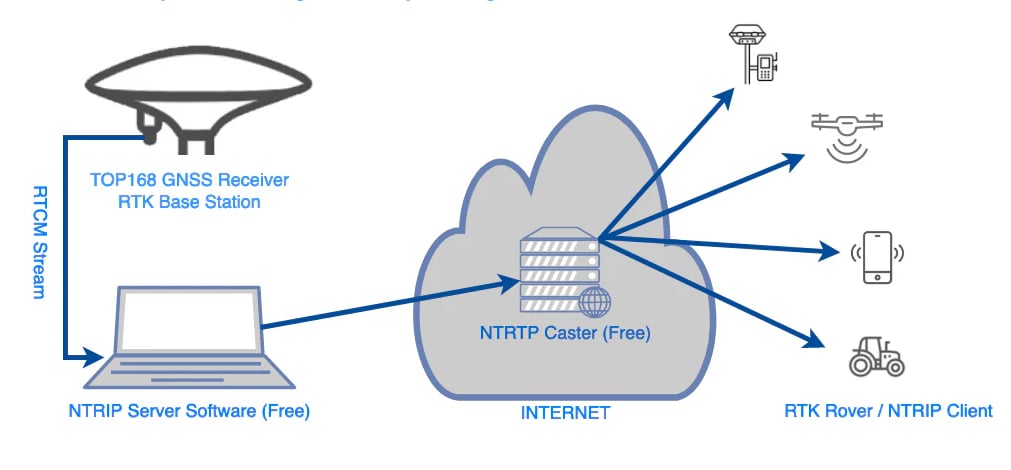
So NTRIP works like a standard client-server network architecture, with three main components
1. The NTRIP **server**: This is where the raw RTCM of the Base Station going to and being pushed over the internet to a central broadcasting hub.
2. The NTRIP **caster**: The central cloud server that manages user logins and organizes incoming base station streams into selectable channels called Mount Points.
3. The NTRIP **client**: The software on your device that connects to the Caster, selects a specific Mount Point, and downloads the corrections.
Because of this, you don't have to own an RTK hardware setup at home, you can simply act as the NTRIP Client.
To do this, you subscribe to a professional CORS network service (like **HxGN SmartNet**). Once approved, the service provider acts as the Caster and will provide you with the four specific pieces of information your client needs to connect:
1. **Host/URL**: The IP address or URL of the provider's Caster
2. **Port**: The network port used for the data stream
3. **Mount Point**: The specific correction stream channel for your local area.
4. **Account**: Your unique **username** and **password** to authenticate your access.
### Setting RTK NTRIP on XBLINK
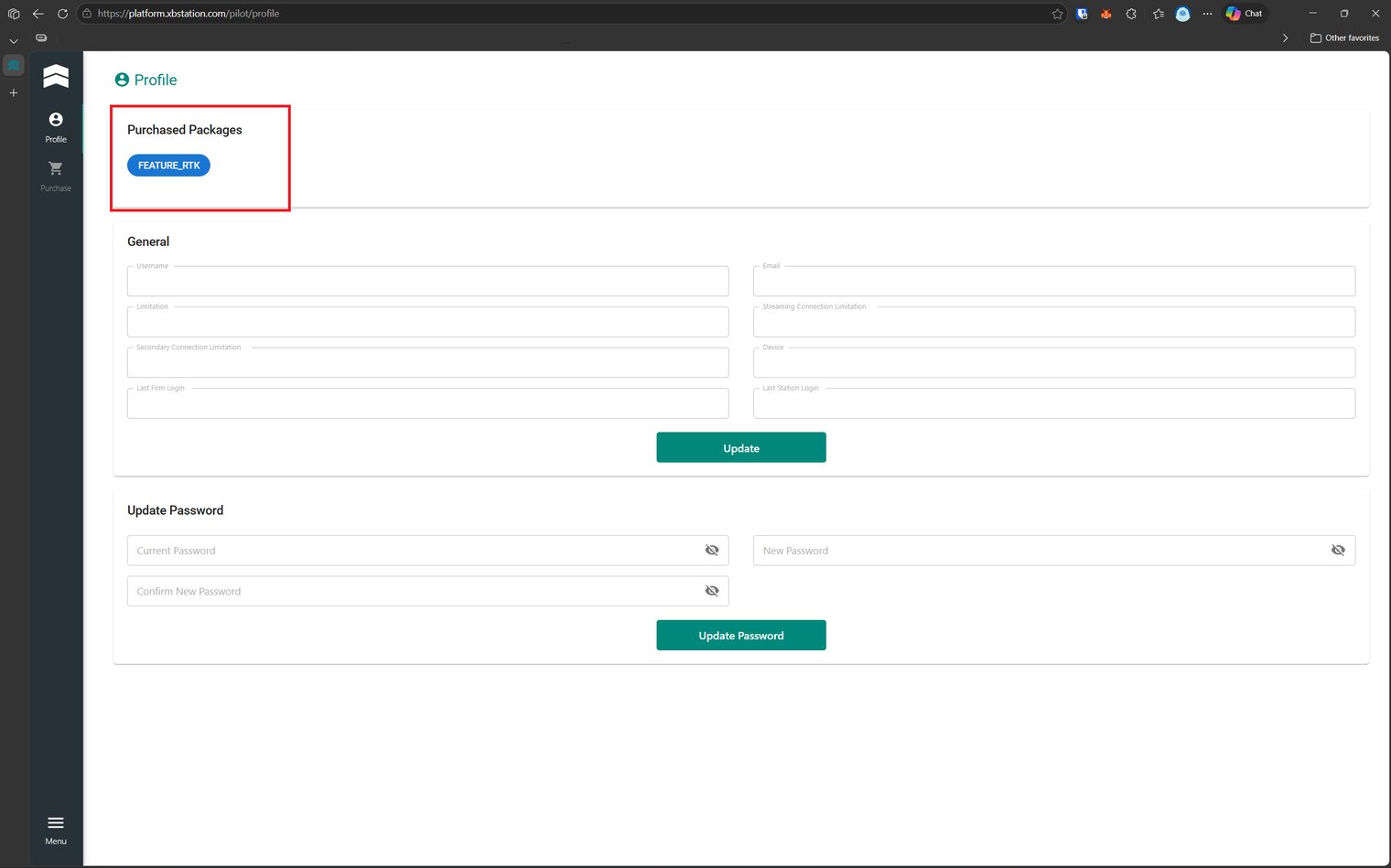
First of all, make sure you have purchased our NTRIP package in order to enable the feature. If you have not purchased, please refer to our [**Payment**](/xblink-duo/xbcloud/payment.md) section for detailed guide.
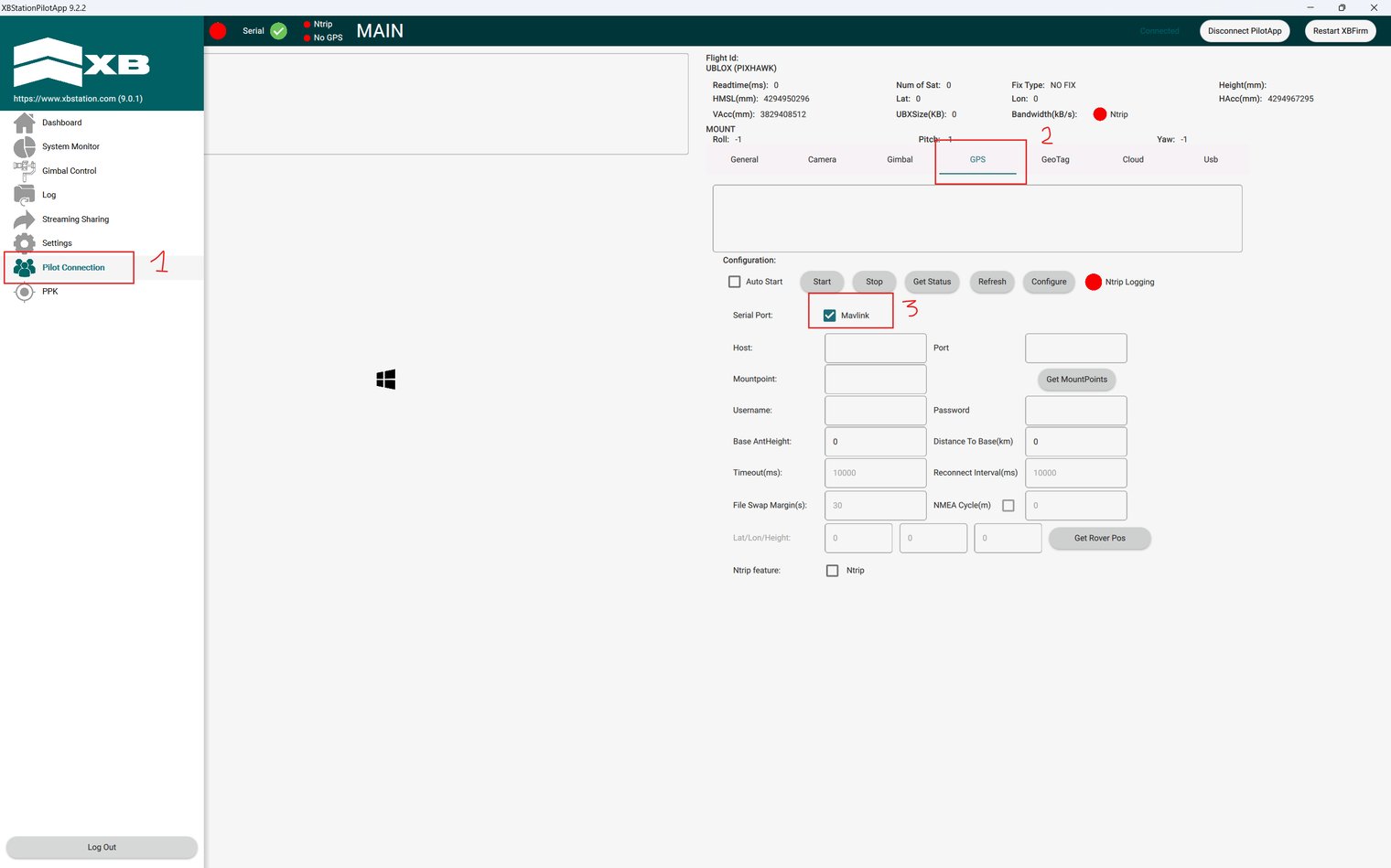
After you have verified that the feature is active via [**Pilot Website**](https://platform.xbstation.com/pilot/login)**,** open the PilotApp, login and click on the **Hamburger icon** on the top left corner to open the menu, then click on **Pilot Connection ⇒ GPS ⇒** Tick the **MAVLink** box ⇒ Tick the **Ntrip** at NTrip feature, you are ready to enter all the necessary information to enable NTRIP
The next step would be to fill all the blank boxes with information that the RTK NTRIP service provider gave you, if they gave you a URL, its structure is as follows, [http://user:pass@host:port/mount](https://docs.xbstation.com/xblink-duo/user-manual/advanced-configuration/cloud-features/http:/user:pass@host:port/mount).
Click **Configure** to save the information that you have filled, then simply click **Start**
If the red dot at NTrip turned green then congratulations, you have successfully enabled RTK NTrip for your drone. Take your drone for a ride to see a clear difference.
### Video Tutorial and Result
Here you can see a tutorial on how to setup the RTK NTrip for your XBLink, and Real-life demo.